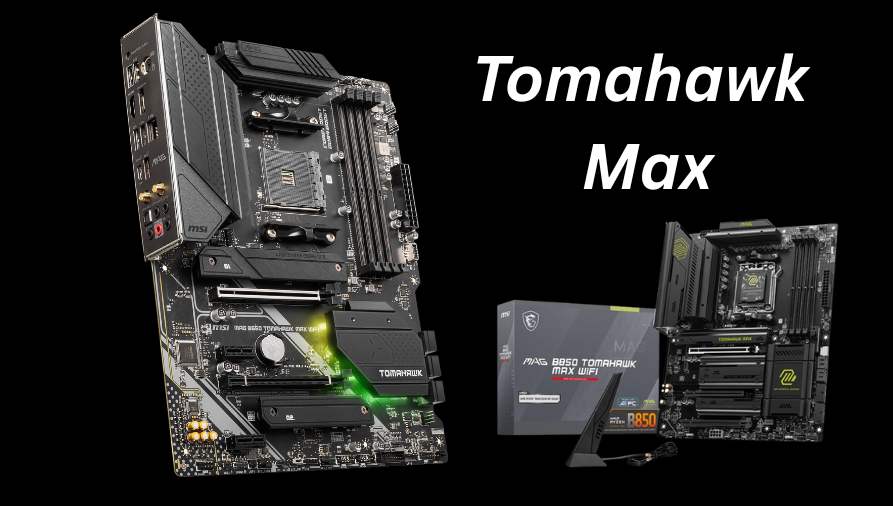

Modern PCs can achieve remarkable flexibility and performance by running both Windows 11 and Linux on the same hardware, and a properly configured dual-boot Windows 11 and Linux setup allows users to maximize speed and efficiency. Windows 11 boots in 15–20 seconds on NVMe SSDs, reaching up to 3500 MB/s, and handles gaming, productivity, and multitasking smoothly.
Linux complements this with 10–15-second boot times, excellent support for coding, development, and virtualization, and safe performance tuning. By carefully managing BIOS/UEFI settings, partitions, and the GRUB bootloader, users can switch seamlessly between systems. This combination of speed, versatility, and reliability highlights the enduring benefits of a dual-boot Windows 11 and Linux setup.
| Task | Details |
| Windows BIOS | F2/Del/Esc, UEFI, Secure Boot enabled |
| Windows Boot | F12 menu, SSD/HDD, 15–20 sec |
| Windows Boot Options | Shift + Restart, safe mode, troubleshoot |
| Windows Optimization | Fast Startup, update SSD firmware, drivers |
| Windows Troubleshoot | GRUB repair, verify partitions, BIOS update |
| Windows SSD Speed | NVMe SSD up to 3500 MB/s read. |
| Windows Multitasking | Handles gaming, editing, and productivity efficiently |
| Windows Overclock | Moderate headroom, CPU frequency boost stable. |
| Linux BIOS | F2/Del/Esc, UEFI, Secure Boot verified |
| Linux Boot | GRUB menu, kernel select, boots 10–15 sec |
| Linux Boot Options | Press ‘e’, modify parameters, and enter safe mode. |
| Linux Optimization | systemd-analyze, turn off daemons, update kernel |
| Linux Troubleshoot | Boot repair, check partitions, restore GRUB. |
| Linux SSD Speed | NVMe SSD read speed over 3000 MB/s |
| Linux Multitasking | Efficient for development, virtualization, and coding |
| Linux Overclock | Supports thermal headroom, performance tuning, and safety |
Dual-Boot Windows 11 and Linux
Dual-boot Windows 11 and Linux allows users to run both operating systems on a single PC, sharing the same hardware. With proper partitioning, UEFI setup, and bootloader configuration like GRUB, users can choose either OS at startup. This setup enables Windows for gaming or productivity and Linux for development or customization, providing flexibility, efficient resource use, and a seamless multi-environment computing experience.
Dual-boot Windows 11
Step 1: Accessing the BIOS/UEFI
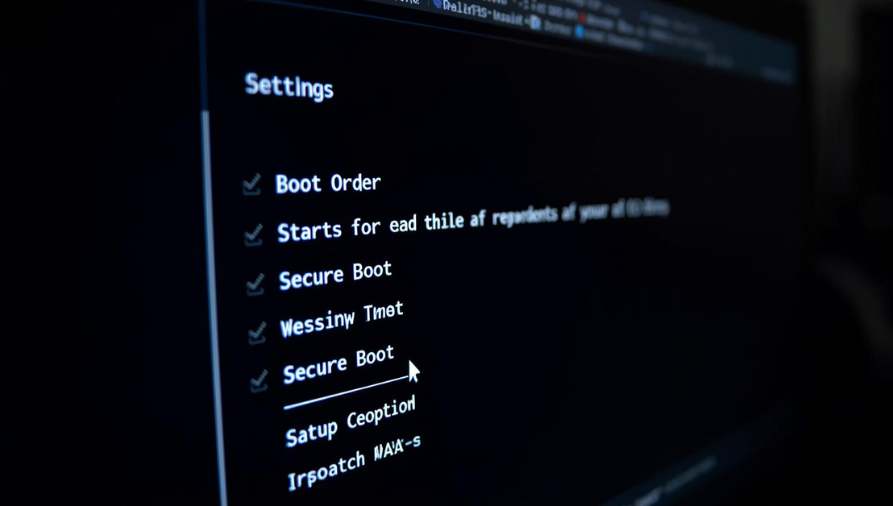
To boot Windows 11, first access the BIOS or UEFI firmware. Restart your PC and press the designated key, usually F2, Del, or Esc, during startup. BIOS allows you to configure boot order, secure boot, and virtualization settings. Ensuring UEFI mode is enabled and Secure Boot is active helps Windows 11 load efficiently, especially on modern NVMe SSDs, with read/write speeds up to 3500 MB/s.
Step 2: Booting into Windows 11
For dual-boot Windows 11 and Linux, select Windows 11 from the boot menu, which appears when pressing F12 or Esc during startup. You may see multiple drives listed if using SSD and HDD combinations. The system then loads Windows 11 with fast startup enabled, typically completing boot in 15–20 seconds on SSDs, while initializing essential services and drivers for smooth performance.
Step 3: Configuring Boot Options
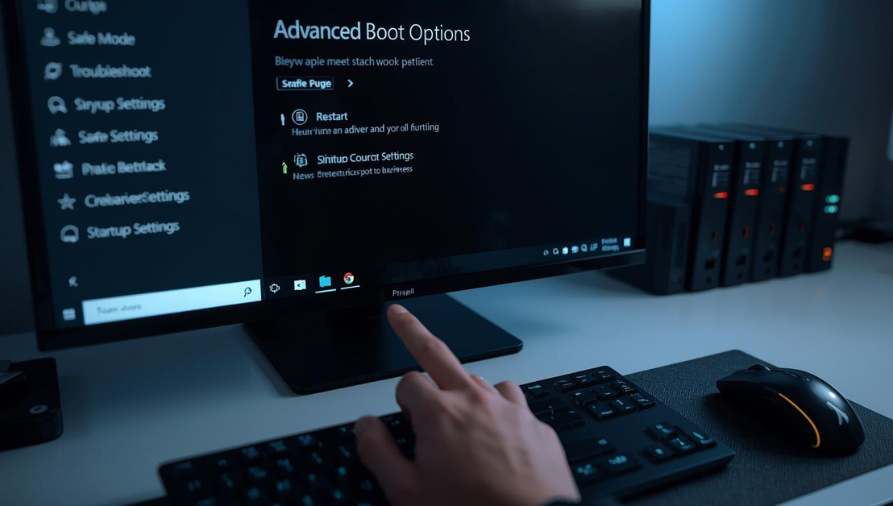
After selecting Windows 11, press Shift + Restart to access advanced boot options. Here, users can troubleshoot, enable safe mode, or reset the system. For dual-boot, this menu is essential for fixing bootloader conflicts. Adjusting startup settings, enabling debugging, or restoring default boot configurations ensures the system remains stable and ready for demanding applications or updates.
Windows 11 Boot Optimization Tips
- Optimizing Windows 11 boot enhances speed and reliability.
- Use Task Manager to turn off unnecessary startup programs, and enable Fast Startup in the Control Panel.
- Ensure your SSD firmware is up to date, and check the drivers for graphics, storage, and the chipset.
- Proper optimization can reduce boot time from 25 seconds to under 15, improving overall responsiveness for professional workloads, gaming, and dual-boot environments.
Troubleshooting Dual-boot Windows 11
For dual-boot Windows 11 and Linux, GRUB or Windows Boot Manager may require adjustments if the OS fails to appear. Repair tools, BIOS updates, or boot repair software can restore functionality. Always verify partition alignment, UEFI settings, and secure boot status. Carefully managing updates prevents Windows 11 from overwriting the Linux bootloader, maintaining smooth switching and ensuring a stable dual-boot experience for advanced users.
Dual-boot Linux
Step 1: Accessing the BIOS/UEFI for Linux
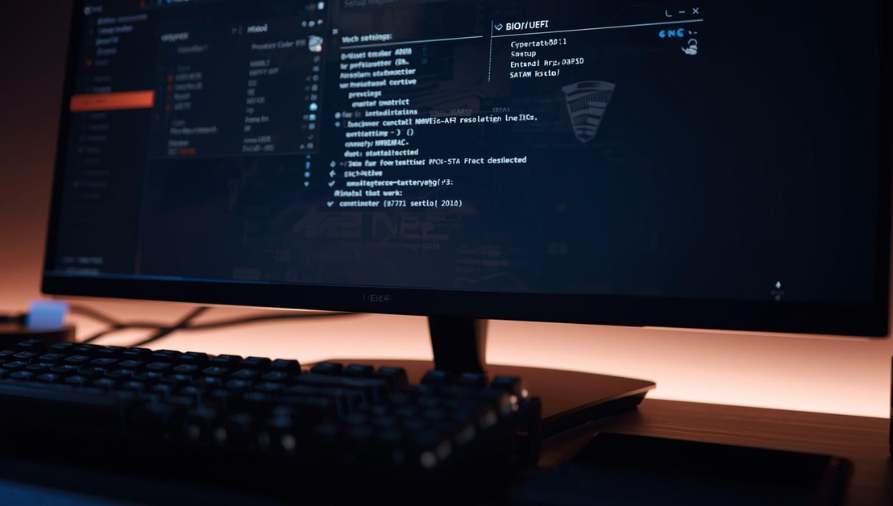
To boot Linux, restart your PC and press the BIOS/UEFI access key, such as F2, Del, or Esc. Ensure UEFI mode is enabled, Secure Boot is configured, and SATA/NVMe drives are recognized. For dual-boot, correctly setting the boot order is crucial. Linux distributions load faster from SSDs, with read speeds often exceeding 3000 MB/s, providing quick initialization of kernel and system services.
Step 2: Booting into Linux

For dual-boot Windows 11 and Linux, select Linux from the GRUB bootloader menu that appears during startup. Use arrow keys to choose your preferred kernel version. Press Enter to load. Linux initializes system processes and services in parallel, often completing boot in 10–15 seconds on modern SSDs. GRUB also allows selecting recovery mode, live session, or advanced options for system repair.
Step 3: Configuring Linux Boot Options
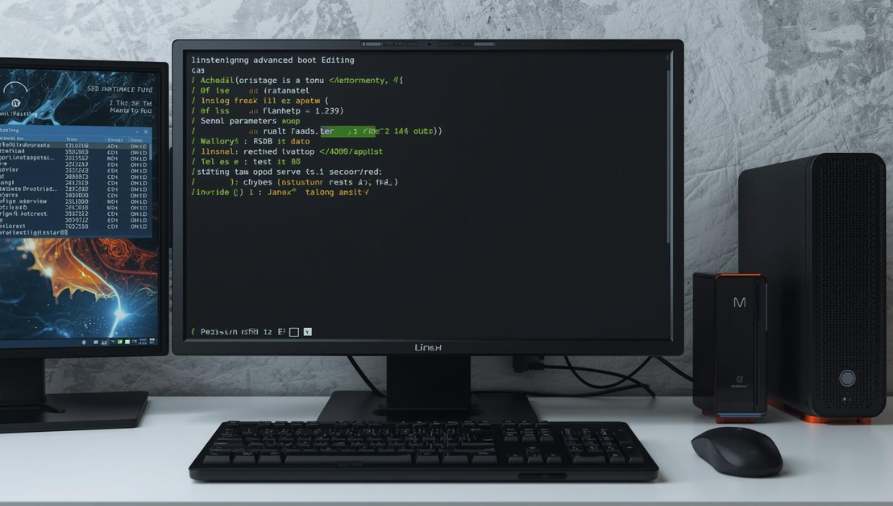
After Linux starts, advanced boot options can be accessed via the GRUB menu by pressing ‘e’ on the selected kernel. This allows changing boot parameters or enabling safe mode. For dual-boot, this is essential when troubleshooting bootloader conflicts, fixing kernel errors, or adjusting startup options. A correctly configured system ensures stability, fast startup, and compatibility with system hardware and SSD storage speeds.
Linux Boot Optimization Tips
- Optimizing Linux boot improves speed and reliability. Enable systemd-analyze to check boot time and identify slow services.
- Disable unnecessary startup daemons, optimize fstab for SSDs, and update kernel modules.
- For dual-boot Windows 11 and Linux, these steps reduce boot time, enhance responsiveness, and improve system performance for software development, virtualization, or daily computing tasks.
Troubleshooting Dual-boot Linux
In a dual-boot setup, issues such as missing GRUB or kernel errors can occur after Windows updates. Use boot repair tools or a live USB to restore GRUB. Ensure partitions are intact, UEFI is enabled, and Secure Boot does not block Linux. Proper troubleshooting ensures smooth OS selection, preserves data integrity, and allows both Linux and Windows 11 to operate efficiently without conflicts.
Conclusion
In summary, a dual-boot Windows 11 and Linux system combines the strengths of both operating systems, offering fast boot times, high SSD performance, and efficient multitasking. With proper BIOS/UEFI setup, partitioning, and GRUB configuration, users can switch seamlessly between Windows and Linux. This setup ensures flexibility, reliability, and productivity, making a dual-boot Windows 11 and Linux configuration ideal for gaming, development, professional work, and everyday computing.
Want to know about T Mobile Fiber: Complete Guide to Fast, Reliable Internet for Homes and Businesses, Including Plans, Speeds, Pricing, Availability, Installation Options, and Customer Benefits Check out our Digital Revolution category.
FAQs
Switching requires using the bootloader menu during startup, typically GRUB or Windows Boot Manager, allowing users to choose which OS to load without affecting system files or performance.
No special hardware is required, but an SSD improves boot speed. UEFI, BIOS, and proper partitioning are essential for maintaining stability and ensuring smooth operation of both systems.
Updates, especially Windows updates, can overwrite the bootloader or partitions. Careful update management and occasional bootloader repair prevent conflicts between operating systems.
When partitions are correctly configured and backups are maintained, dual-booting is safe. Mismanagement can cause data loss, but careful setup preserves both operating systems and user files.