
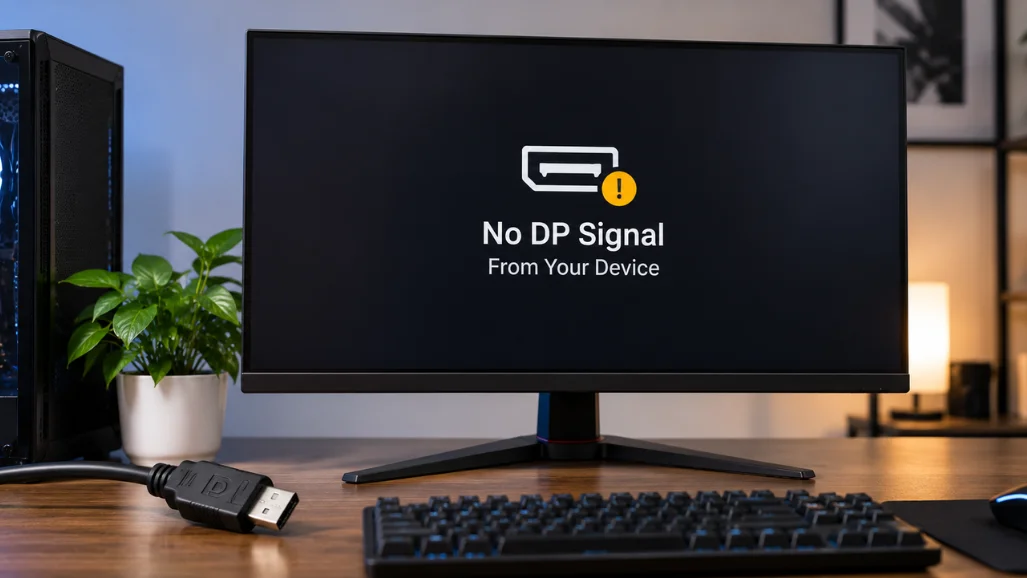
If your monitor shows “no DP signal from your device,” it has power but lacks usable DisplayPort video. The fault can involve the cable, selected input, graphics output, Windows, or an adapter. Most cases can be diagnosed without replacing the monitor or graphics card.
| No DP Signal From Your Device | What to look for | Best first action |
|---|---|---|
| Monitor input. | Wrong HDMI, USB-C, or DP source selected | Select DisplayPort manually. |
| DP cable | Loose, damaged, or unsuitable cable | Reseat or replace it. |
| Computer port | Wrong or inactive video output | Try another graphics port. |
| Dock or adapter | Signal fails between devices. | Connect the monitor directly. |
| Windows | The external display is not active. | Check Windows display settings |
| Graphics driver | Output fails after updates or sleep. | Restart or update the driver. |
| Monitor hardware | The screen cannot pass its self-test. | Run built-in diagnostics. |
Key Takeaways
- Select the exact DisplayPort input before changing software.
- Reseat the cable at both ends with both devices powered down.
- Test another cable and another graphics output when available.
- Bypass docks, hubs, KVM switches, and adapters during testing.
- Check Windows and graphics drivers only after basic hardware checks.
- Run the monitor self-test before assuming the display has failed.
The message means your monitor has power but isn’t receiving usable video through DisplayPort. Start by selecting the correct input, reseating the cable, and restarting both devices. If that fails, test another cable or port, bypass docks, and then check Windows, drivers, firmware, and hardware.
What the DisplayPort Error Actually Means
A DisplayPort error does not automatically mean your screen is broken. The monitor is usually awake and searching for video on its selected input. Dell documentation shows similar messages when a display cannot detect an active source. The missing video can occur anywhere between the computer and screen.
A loose connector, failed graphics output, or wrong input can create the same symptom. That is why testing the connection in a fixed order saves time. DisplayPort also supports high resolutions and refresh rates on modern monitors. Faster display modes place greater demands on the connection between your GPU and monitor. Techirya’s LG 5K2K monitor guide explains how DisplayPort bandwidth changes across demanding monitor configurations.
No DP Signal From Your Device: 9 Fixes to Try in Order
Use these fixes from easiest to most diagnostic. Stop when the picture returns and remains stable. Changing several settings together makes the real cause harder to identify.
1. Make Sure the Computer Is Awake
Press a keyboard key and move the mouse before changing anything. A sleeping computer may leave an external monitor waiting without an active video stream. Make sure the computer has finished starting. On Windows, press Windows + P if another screen still works. Choose Duplicate or Extend when you want the external display active. Microsoft also recommends checking the selected display mode when troubleshooting external monitors.
2. Select DisplayPort on the Monitor
Open the monitor’s on-screen menu using its buttons or joystick. Find Input Source, Source, or a similarly named setting. Select the DisplayPort connection that matches your cable. Some monitors offer DP1 and DP2 when multiple inputs exist. Automatic selection can also stay on HDMI or USB-C after equipment changes. Manual selection removes that uncertainty immediately.
3. Reseat the DisplayPort Cable
Turn off the monitor and computer before disconnecting the video cable. Remove the connector from both ends, then reconnect each end firmly. Check the plugs and ports for visible damage while they are disconnected.
A connector can appear installed while still making an unreliable connection. Even a small desk movement can loosen an older cable. Reconnecting both ends rules out one of the simplest causes.
4. Perform a Full Power Reset
Shut down the computer and switch off the monitor. Briefly disconnect their power connections, then reconnect them. Then restart the monitor and computer. This reset can clear temporary communication problems between the display and graphics hardware. Dell recommends hard-reset procedures during general display troubleshooting. It is also safer than changing advanced settings first.
5. Bypass Docks, Hubs, and Adapters
Remove docking stations, KVM switches, splitters, hubs, and video adapters during testing. Connect the computer directly to the monitor whenever your ports allow it. Microsoft specifically recommends removing accessories when diagnosing external displays.
If the direct connection works, reconnect accessories one at a time. The first component that restores the failure becomes your main suspect. Check that component’s firmware, power supply, and video specifications. USB-C users should also confirm that the computer’s chosen port supports video output. Not every USB-C connection carries DisplayPort video. Charging or transferring files doesn’t prove video support.
6. Test Another Cable and Graphics Port
Replace the DisplayPort cable with a known-good cable, if available. Also test another DisplayPort output on the graphics card. These two tests separate cable problems from individual port failures. Desktop users should also check where the cable enters the computer. Systems with dedicated graphics cards normally use ports on that graphics card. A motherboard video port may remain inactive on some configurations.
Graphics capabilities also affect the resolutions and refresh rates available through each connection. Techirya’s RX 7900 XTX and RTX 4080 comparison shows how graphics cards can provide different DisplayPort generations. These differences matter more with demanding high-resolution monitors.
7. Reset and Detect the Display in Windows
If another screen works, open Settings > System > Display in Windows. Check whether Windows lists the missing monitor under your available displays. Use the detection option if the monitor is absent.
You can also press Windows + Ctrl + Shift + B to restart the graphics driver. The screen may blink, and Windows may play a short sound. This shortcut helps when video disappears after sleep or due to a temporary graphics issue.
Microsoft recommends testing another cable, port, system, and display when basic Windows checks fail. Its guidance for external monitors follows the same isolation approach. That method prevents unnecessary hardware purchases.
8. Update or Roll Back Graphics Drivers
Open Device Manager and locate your graphics adapter. Check the GPU manufacturer’s support software for a suitable current driver. Restart Windows after installing the driver. If the problem began immediately after a graphics update, consider a rollback instead. A previously working driver can help confirm an update-related problem. Avoid installing unrelated driver utilities during diagnosis.
Monitor firmware can matter on some models, too. Search the manufacturer’s support page using the exact monitor model. Follow its instructions closely because firmware procedures differ between displays.
9. Run the Monitor Self-Test
A self-test helps separate a monitor problem from a computer problem. Disconnect the video cable while leaving the monitor connected to power. Then turn on the monitor and watch for its own message or diagnostic screen. Dell says a working monitor should normally display its self-test message when video is disconnected. That result indicates the panel can operate independently from the computer.
Check your monitor maker’s support page for model-specific diagnostic steps. If the monitor passes, focus on the cable, dock, computer, or graphics hardware. If possible, test the display with another computer. Testing another monitor on your original computer provides another useful comparison.
What If DisplayPort Stops Working After Sleep?

A problem that appears only after sleep deserves separate testing. First, fully wake the computer, then turn the monitor off and back on. Reconnecting the video cable can also force the devices to re-establish the connection. Next, test whether the problem survives a normal restart. If restarting consistently restores video, the issue is more likely software- or power-state-related. Update Windows and the graphics driver before changing advanced power options.
Also test persistent wake problems without a dock. A dock can remain functional for Ethernet or USB while its video output fails. Direct testing shows whether the computer and monitor can communicate without that extra hardware.
What If You Use a Laptop or USB-C Dock?
Laptop setups add more components to the video path. The computer, USB-C port, dock, adapter, cable, and monitor must all support the requested connection. A failure at any point can leave the screen without video. When possible, start by connecting the laptop directly to the monitor. Then test the dock with its recommended power adapter and current firmware. Try another compatible USB-C port if the laptop provides more than one.
High-resolution monitors can also expose limitations that simpler displays do not reveal. Refresh rate, resolution, and connection standards all affect required bandwidth. Check the manufacturer’s specifications before assuming every adapter supports every display mode.
How to Tell Whether the Cable, Monitor, or GPU Is Faulty
Change one part of the signal path at a time. A different cable working on the same equipment points toward the original cable. If the same monitor works with another computer, the issue is likely the original computer. A second monitor can test the computer’s output in the opposite direction. If another display works on the same graphics port, inspect the original monitor and cable. If neither display works, the computer’s output deserves closer attention.
Don’t buy replacement hardware before making these comparisons. A newer monitor may offer useful upgrades, but replacement should follow diagnosis. Techirya’s budget gaming monitor guide can help if testing confirms that replacement makes sense.
What to Do Next
Start with the input setting and physical cable before touching drivers or firmware. Then simplify the connection until only the computer, cable, and monitor remain. That order usually identifies the failing part with the least wasted effort. If the monitor passes its self-test but fails with several cables and computers, contact its manufacturer.
If other monitors also fail on your computer, focus on its graphics hardware and software. Keep notes on each test so you don’t repeat the same checks.
Frequently Asked Questions
Why does my monitor say no DP signal from your device?
The monitor has power but cannot detect usable DisplayPort video from the connected source. The cause may be the selected input, cable, graphics output, dock, driver, or monitor. Testing those parts individually helps you identify the failure faster.
Does this message mean my Dell monitor is broken?
No, the message alone does not prove a hardware failure. Dell monitors can show it when the selected connection has no active video source. Run the monitor self-test before deciding the display requires repair.
Can HDMI work while DisplayPort does not?
Yes, because HDMI and DisplayPort use separate connections and hardware paths. A monitor can work through HDMI while one DisplayPort cable or port has a problem. That comparison provides useful evidence during troubleshooting.
Should I update my graphics driver?
Update the driver after checking the input, cable, ports, and direct connection. Software changes should not replace basic hardware isolation. Roll back the driver if the problem began directly after an update.
How do I know whether my DisplayPort cable is bad?
Test a second known-good cable using the same computer and monitor ports. If the replacement works consistently, the original cable becomes the likely cause. Test more than once if the failure has previously happened only after sleep.