
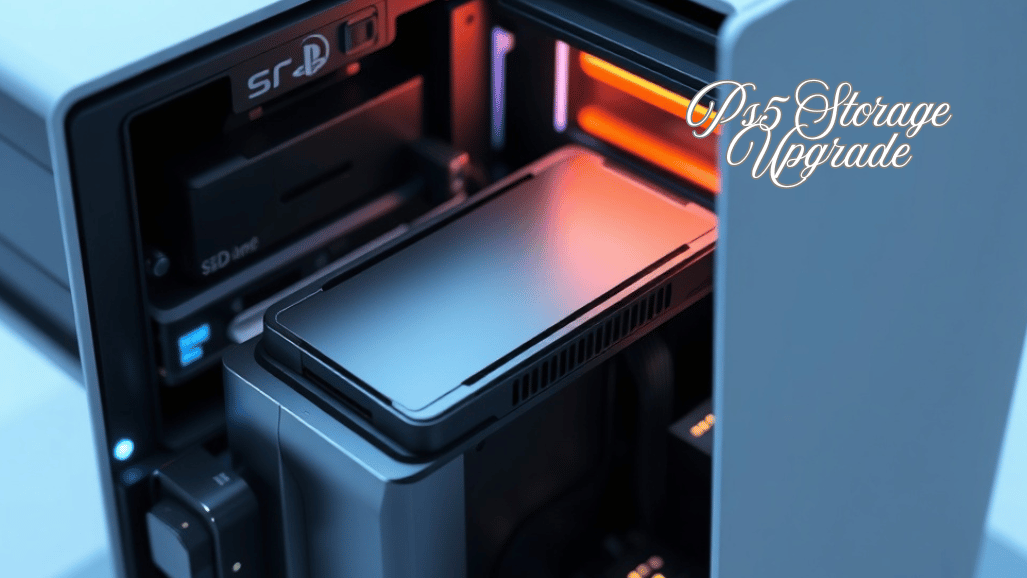
The PlayStation 5 has revolutionized gaming with stunning visuals, lightning-fast load times, and an immersive next-generation experience. Despite its impressive hardware, one challenge many players face is running out of storage.
Modern AAA games can easily exceed 50–100 GB, quickly filling the PS5’s internal SSD and forcing gamers to constantly delete and reinstall titles. This storage limitation can disrupt the gaming experience, forcing players to constantly delete older titles to make room for new releases.
This complete guide covers everything you need to know about PS5 storage upgrades, including SSD compatibility, installation steps, performance expectations, and expert tips.
| Topic | Overview |
| PS5 storage upgrade Limitation | The internal SSD fills up quickly due to large AAA games (50–100+ GB), updates, and DLC |
| Expansion Options | Internal M.2 SSD (for PS5 & PS4 games, next-gen speed) or external USB drive (PS4 games only, slower, backup use). |
| Compatible SSD Requirements | M.2 2280, PCIe Gen 4 x4 NVMe, 5,500 MB/s+ read speed, 250 GB–4 TB, heatsink required. |
| Heatsink Importance | Prevents overheating, avoids thermal throttling, protects console components, and ensures stable performance. |
| Recommended SSD Capacities | 1 TB – casual gamers; 2 TB – most users; 4 TB – large digital libraries, futureproofing. |
| Installation Steps | Power off PS5 → Remove cover → Locate M.2 slot → Insert SSD → Secure screw → Reassemble the console. |
| Formatting SSD | PS5 detects new SSD → Format via on-screen instructions → Verify speed with the built-in test. |
| Performance Expectations | Fast load times, smooth gameplay, minimal differences from internal storage, and seamless game switching. |
| Common Mistakes | Using a Gen 3 SSD, no heatsink, incorrect spacer placement, unsupported sizes, and powering too early. |
| Internal vs External Storage | Internal SSD: faster, runs PS5 games; External USB: cheaper, for PS4 games only, easy backup. |
| Benefits of Upgrade | More storage, faster load times, keep multiple games installed, future-proof console, uninterrupted next-gen gaming. |
PS5 Storage Upgrade
The PlayStation 5 has redefined next-generation gaming with its stunning visuals, ultra-fast load times, and immersive gameplay experiences. Despite its advanced hardware, many gamers quickly encounter a common limitation: limited storage space.
Fortunately, Sony has designed the console with expandable storage support, allowing players to perform a PS5 storage upgrade by installing compatible M.2 SSDs. This upgrade not only increases the total storage capacity but also allows players to keep multiple games installed simultaneously, enjoy faster load times, and manage their digital libraries more efficiently.
Understanding PS5 Storage Expansion Options
Internal M.2 SSD Expansion
- Installs inside the PS5
- Supports both PS5 and PS4 games
- Maintains next-gen load speeds
- Best option for long-term use
External USB Storage
- Can store PS4 games only
- Cannot run PS5 games directly
- Useful for backups and archives
PS5 Compatible SSD Requirements
Minimum SSD Specifications
- Form factor: M.2 2280
- Interface: PCIe Gen 4 x4 NVMe
- Sequential read speed: 5,500 MB/s or higher
- Capacity: 250 GB to 4 TB
- Heatsink: Required
Why a Heatsink Is Essential for PS5 SSDs
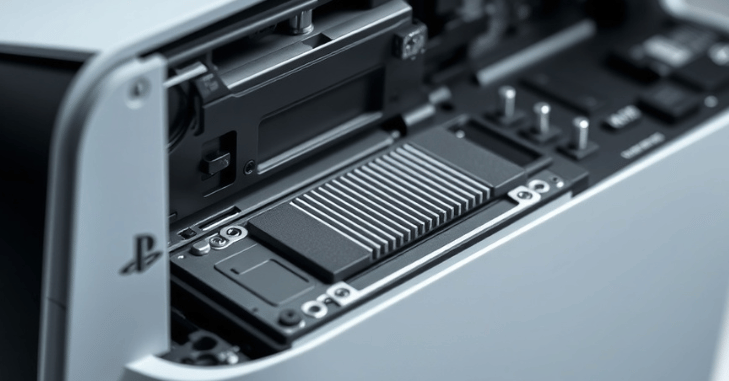
A heatsink is essential for PS5 SSDs during a PS5 storage upgrade because effective heat management inside the console is critical for maintaining performance and system stability. During long gaming sessions, high-speed SSDs generate significant heat, and without proper cooling, this can lead to thermal throttling, reduced speeds, and potential long-term damage.
Using a heatsink helps dissipate heat efficiently, improves the SSD’s long-term performance and reliability, protects internal PS5 components, and ensures stable, uninterrupted gameplay.
Choosing the Right SSD Capacity for PS5
| SSD Capacity | Best For | Key Benefits |
| 1 TB | Casual gamers | Enough space for a few large games, lower cost |
| 2 TB | Most PS5 users | Best balance of price and storage, holds many AAA titles |
| 4 TB | Hardcore gamers & collectors | Ideal for large digital libraries, a future-proof solution |
Step-by-Step PS5 Storage Installation
Installing an internal SSD in your PS5 is a simple process that typically takes 10–15 minutes when done carefully. With the right preparation, you can expand your console storage without any issues.
Power Off the PS5
Before beginning a PS5 storage upgrade, it’s crucial to completely shut down your console and unplug all cables. Placing the PS5 on a soft, flat surface will prevent scratches or accidental damage while you work. Ensuring the console is fully powered off and cool is an important safety step that protects both you and your PS5 during the installation process.
Remove the PS5 Cover
Next, lay the console horizontally and gently slide the side panel away to lift it off. This exposes the internal compartment of the PS5, giving you access to the SSD expansion slot. Handling the panel carefully will prevent any accidental bending or scratches.
Locate the M.2 SSD Slot
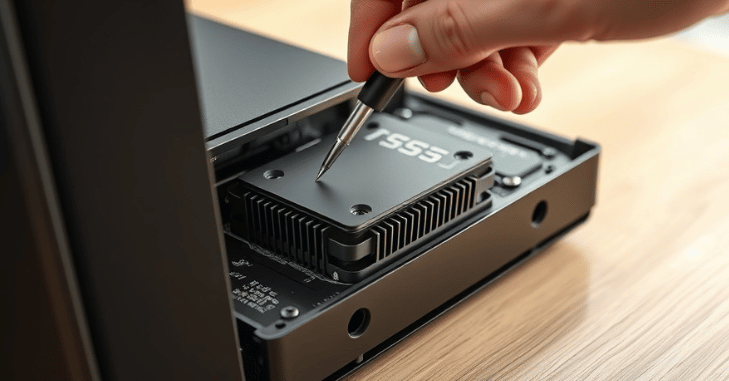
Inside the console, locate the M.2 SSD slot near the cooling fan. Remove the metal slot cover using a screwdriver and adjust the spacer to match the length of your SSD. This step ensures that your SSD fits securely in the slot without any movement.
Install the SSD
Carefully insert the SSD into the slot at a slight angle, then press it down gently until it sits flat. Secure it using the mounting screw to hold it firmly in place. Proper installation is essential to ensure the SSD functions correctly and maintains optimal performance.
Reassemble the Console
After installing the SSD, replace the metal slot cover and slide the PS5 side panel back into position. Reconnect all cables, and your console will be ready to power on. The PS5 will then recognize the new storage, allowing you to enjoy additional space for games and applications.
Tools Required Before Installing a PS5 SSD
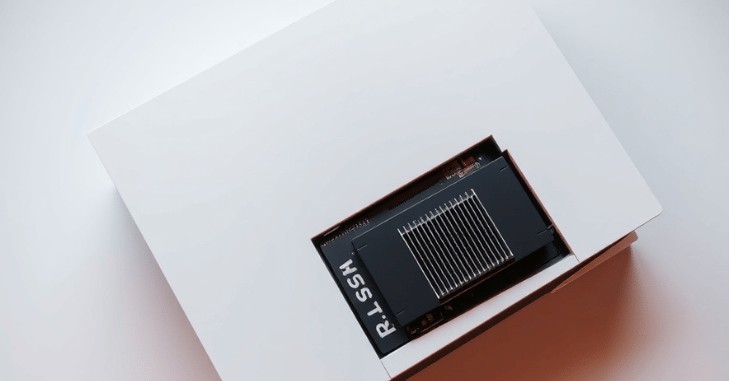
- Compatible M.2 SSD with heatsink
- Phillips-head screwdriver
- Clean, flat workspace
- Fully powered-off PS5 console
Formatting the SSD on Your PS5
After installing the SSD, the PS5 will automatically detect the new drive. To prepare it for use, power the console and follow the on-screen instructions to format the SSD. Once the formatting process is complete, the system may display speed test results to confirm the drive meets performance standards.
Managing Storage After the Upgrade
Power On the PS5
After installing the new SSD, the first step is to power on your PS5. The console will automatically detect the newly installed drive, allowing you to access its storage management options.
Format the SSD
Next, follow the on-screen instructions to format the SSD. Formatting prepares the drive for use and ensures that the PS5 can read and write data properly, maintaining optimal performance.
Review Performance
Once formatting is complete, the system may display speed test results. These results confirm that the SSD meets the PS5’s performance standards, ensuring smooth gameplay and fast loading times for all your games.
Ready for Use
After verification, the SSD is fully ready for use. You can now store and run games directly from the new drive, giving your PS5 additional space for your growing game library while maintaining next-generation performance.
Performance Expectations After a PS5 Storage Upgrade
After a PS5 storage upgrade with a compatible SSD, you can expect performance that is very close to the console’s internal storage. This includes fast load times, smooth gameplay, minimal differences in performance, and seamless switching between games.
To ensure the SSD is performing optimally, Sony’s built-in speed test can be used to verify that it meets the required standards, providing a reliable and high-speed gaming experience.
Common Mistakes to Avoid During Installation
Mistakes to Watch Out For
- Using a PCIe Gen 3 SSD
- Installing an SSD without a heatsink
- Incorrect spacer placement
- Using unsupported SSD sizes
- Powering on the console before reassembly
Internal SSD vs. External Storage: Which Is Better?
Both options serve different needs.
Internal SSD Advantages
- Runs PS5 games directly
- Faster performance
- Cleaner storage management
External Storage Advantages
- More affordable
- Easy setup
- Ideal for PS4 game libraries
For next-gen gaming, an internal SSD is the superior choice.
Conclusion
A PS5 storage upgrade is one of the most effective ways to enhance your gaming experience and future-proof your console. By selecting a compatible M.2 SSD, carefully following the installation steps, and managing your storage efficiently, you can significantly expand your game library without compromising performance.
Whether you play casually or maintain a large collection of AAA titles, upgrading your PS5 storage ensures faster load times, seamless gameplay, and the freedom to enjoy more games without constantly deleting and reinstalling content.
Apart from that, if you want to know more about Best 1440p GPU: A Guide of Top Picks for Money, Budget Builds, and Ryzen 5 5600X Combos then visit our Hardware category.
FAQs
Installing a suitable M.2 solid-state drive will increase your PS5™ console’s storage capacity to 8TB.
Two SSDs. For this reason, Sony included an expansion slot in the PS5®, and they encourage owners to install compatible M.2 SSDs to increase storage.
How you utilize your computer will determine the response. Two 4TB NVMe SSDs are typically a superior option if you want greater value, versatility, and security.
Make sure the SSD storage is at least 1TB to get optimal performance, versatility, and a future-proof configuration. A 2TB to 4TB capacity is excellent for power users.