
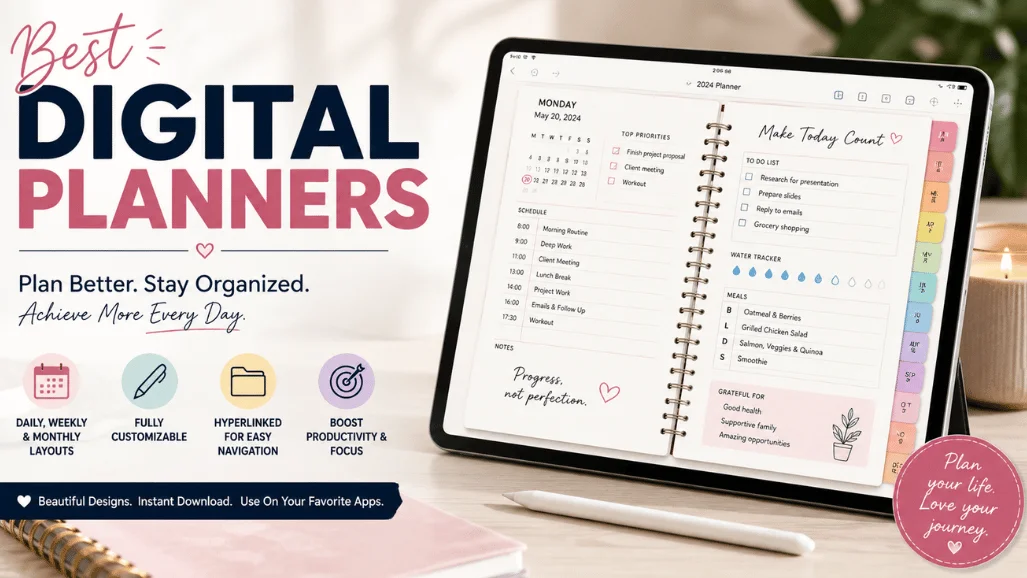
The best digital planners fit your device and your habits. Choose a PDF planner for handwriting and flexible pages, a calendar-centered app for scheduling, or a task system when projects are your main problem.
Quick comparison
| Best digital planners | Best for | Why it stands out | Budget |
| GoodNotes PDF planner | Handwritten planning | Hyperlinks, custom pages | iPad |
| Notion | Project planning | Databases and templates | Web and desktop |
| Todoist | Task focus | Fast capture and reminders | All devices |
| Google Calendar | Time blocking | Shared schedules | All devices |
| Apple Notes setup | Simple lists | Low friction | Apple devices |
TL; DR
- Start with the use case, not a feature list.
- Keep the setup simple enough to use every week.
- Compare the tradeoffs before paying premium extras.
Choose the planning method before the design.
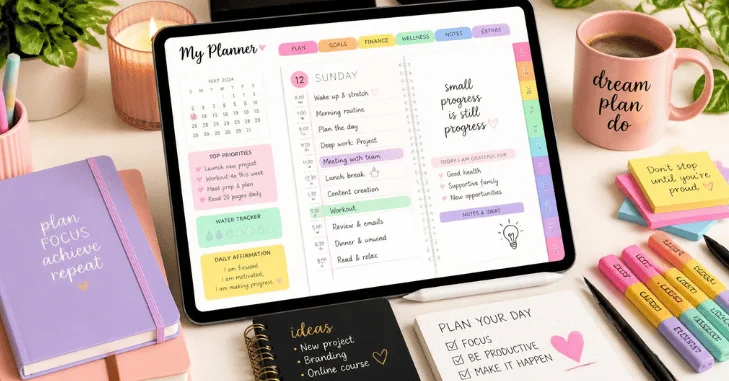
A beautiful planner fails when it asks you to plan in a way you dislike. Handwriters often prefer a hyperlinked PDF. People who coordinate appointments may need a calendar. Project-heavy work benefits from tasks, views, and repeatable templates. For a related plain-English resource, see our practical how-to tutorials.
Check device and input compatibility.
Confirm whether you will use an iPad, laptop, phone, stylus, or all of them. A PDF planner can be wonderful on a tablet and clumsy on a small phone. A cloud app is easier to update everywhere but may feel less personal.
Use a small weekly test.
Create one week of realistic pages before moving your whole life into a new system. Add appointments, a short task list, one project, and a habit tracker. Notice what you skip. The skipped field is the feature you should remove.
Pick a simple starting point.
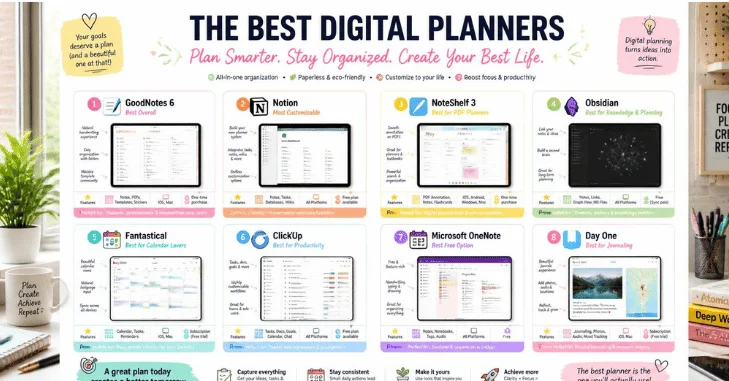
GoodNotes suits handwritten pages, Notion suits projects, Todoist suits task capture, Google Calendar suits time blocking, and Apple Notes suits minimal lists. Start with one tool and add connections only after the habit is stable.
How to make a confident choice
- Write down the task you do most often.
- Set a total budget that includes accessories or subscriptions.
- Try the simplest option that meets the task.
- Review after one week and adjust only what blocks progress.
This method keeps the choice practical. It also prevents a long feature list from replacing a real decision. A focused setup is easier to learn, easier to maintain, and more likely to deliver the result you wanted.
A practical example
Imagine you are deciding on a busy Tuesday evening. Open a note and describe the job in one sentence. Then list the conditions that make the job harder: poor light, a noisy room, a small screen, travel, a tight deadline, or a limited budget. Compare each option against that short list. This shifts the question from which option has the most features to which option makes your normal task easier.
Next, make a tiny test plan. Use the option for one ordinary task, one slightly difficult task, and one task you actually enjoy. Record what slowed you down. A product, tool, or technique that seems impressive in a review can be frustrating when its controls, setup time, or upkeep do not fit your routine. That is why a short test gives you better information than a generic star rating.
Keep your first setup deliberately small. Add only the accessory, template, setting, or workflow step that solves a real problem. You can expand after you have a repeatable habit. This approach also protects your budget because it makes optional upgrades earn their place instead of becoming an automatic purchase. Stop. Make the next choice only after you learn how the first one performs in ordinary use, because real habits reveal costs and frustrations that no comparison chart can predict.
What people often get wrong
The common mistake is choosing for an imagined future rather than the task in front of you. Beginners may buy advanced controls before learning the basics. Busy people can choose an elaborate system that is difficult to open each day. Some shoppers focus on one headline specification while ignoring comfort, compatibility, support, or the ongoing cost of using it.
Another mistake is treating a recommendation as a universal verdict. Good recommendations have a context. They explain who benefits, which tradeoff is involved, and who should look elsewhere. Use the comparison table to narrow the field, then read the section that matches your situation. If two options still seem tied, choose the simpler one or the option with an easier return policy.
Finally, do not wait for perfect certainty. You only need enough evidence to make a sensible next choice. Set a review date after a week or a month. If the option is helping, keep it. If it creates friction, change one variable and test again. That process is calmer, cheaper, and more useful than restarting the research from scratch.
Decision checklist
Before you finish, check five things. Can you explain the main job in one sentence? Does the option work with the device, space, and time you already have? Can you afford the full setup rather than only the first purchase? Is there a low-risk way to test it? And do you know the one tradeoff you are accepting? If you can answer those questions, you have enough clarity to move ahead.
Save the checklist with your notes. It becomes useful the next time a new feature, sale, or recommendation distracts you from the original goal. In the United States, set a total budget in USD, such as $100 for a starter setup, before you compare extras. The best choice is rarely the most complicated one. It is the choice you will use consistently and understand well enough to improve. Do that first. Then stop comparing.
Before you share results or settings publicly, review our PS5 Internal Storage for a quick privacy reminder.
Conclusion
The best digital planner is the one that fits your device, planning style, and everyday routine without creating unnecessary complexity. Choose a GoodNotes PDF planner if you prefer handwriting and flexible layouts, Notion for project planning and customizable databases, Todoist for fast task capture and reminders, Google Calendar for appointments and time blocking, or Apple Notes for simple lists and low-friction planning.
Before paying for premium features, test your preferred system with real tasks for at least a week and identify which features you actually use. Consider device compatibility, total cost, ease of use, and long-term maintenance rather than choosing based on the longest feature list.
Next step
Choose one option, make a short checklist, and test it with a real task this week. A small practical test reveals more than another hour of comparison.
Frequently asked questions
They are worth it if the system matches how you already plan and is easy to open each day.
No. An iPad helps for handwriting, but browser-based planners and calendar apps work on many devices.
A calendar plus a short task list is usually the lowest-friction place to begin.