
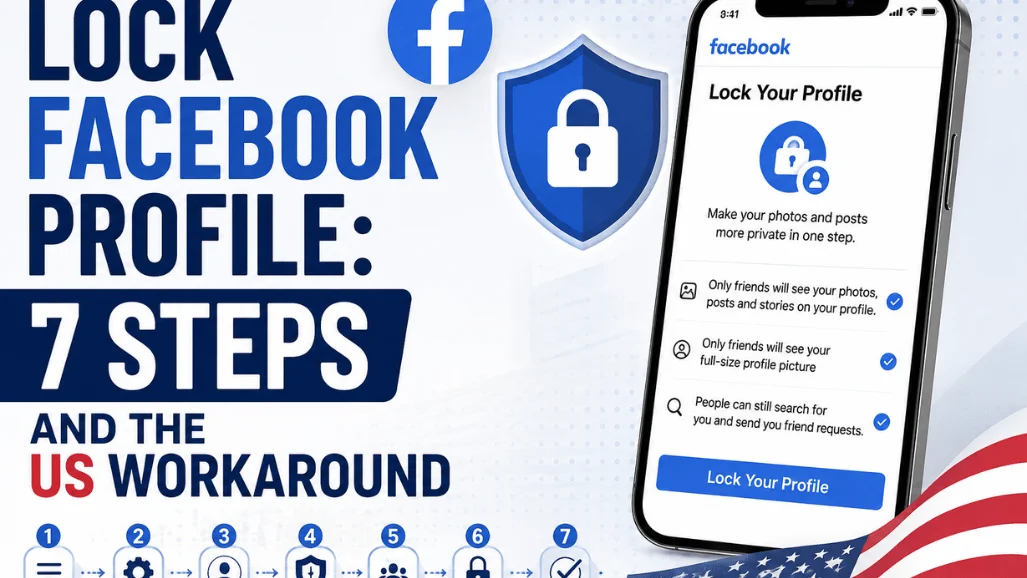
Search “how to lock Facebook profile,” and you get the same three taps on every result. What almost nobody mentions is that the button is missing for most people reading this from the United States. So this guide covers both halves: the seven steps when the option is there, and the settings checklist that copies it when it isn’t. Our guide to Photography Tips for Beginners covers this in more detail.
Open the Facebook app, tap your profile picture, tap your name, then tap the three dots beside Edit profile and choose Lock profile. Confirm, and everything on your page drops to friends only. The whole job takes about a minute, and you can reverse it from that same menu whenever you want.
| Question | Short answer |
| What locking does | Hides posts, photos, stories, and your full-size profile picture from anyone who is not a friend |
| Where the switch lives | Your own profile page is in the three-dot menu next to “Edit profile.” |
| Time needed | Roughly one minute on a phone or a computer |
| Reversible | Yes. The reverse switch sits in the same menu |
| Availability | Certain countries only. Facebook’s Help Center says the feature “isn’t available everywhere.” |
| Still public afterwards | Your name, your thumbnail photo, search results, friend requests, and Messenger |
| If the option is missing | Rebuild the same outcome through privacy. Checkup and audience controls |
Key takeaways
- Locking is one switch that pushes your posts, photos, and stories down to friends only.
- Past public posts change to Friends automatically, and tag review switches on.
- The feature is regional. Plenty of American accounts have never seen the menu item.
- Eight privacy settings reproduce almost the same result, and they work everywhere.
- Nothing here hides you from friends, from screenshots, or from Messenger.
What you need before you start
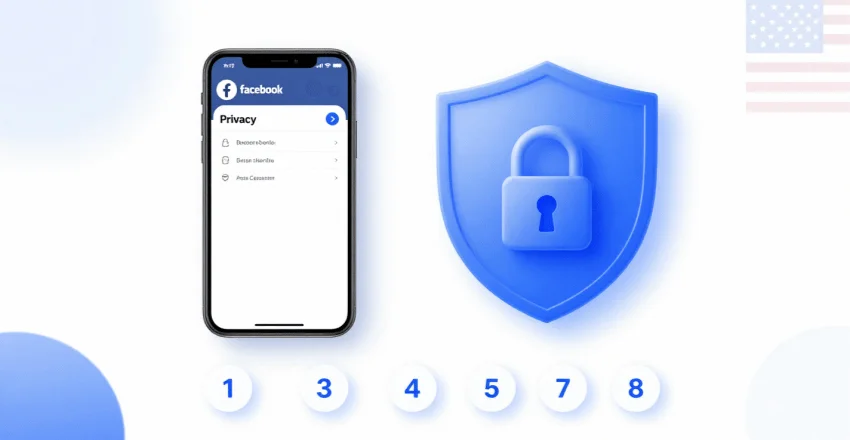
Not much, honestly. You need the current version of the Facebook app, a personal account rather than a Page, and a spare two minutes. If your app has not updated since last spring, update it first. A stale build is the most common reason the menu looks nothing like the screenshots you have seen. Our gadgets and apps guides cover the same update habit for the other tools on your phone.
One more thing to check. If you switched your account into professional mode for creator tools, the lock is turned off by design. Switch back to a standard profile first.
How to Lock Facebook Profile on Android and iPhone
The path is identical on both platforms, apart from where the profile picture sits.
- Open the Facebook app and tap your profile picture. On Android, it is top right; on iPhone, it is bottom right.
- Tap your name at the top of the menu to open your own page.
- Tap the three dots to the right of the Edit profile button.
- Scroll the sheet that slides up and tap Lock profile.
- Read the summary screen. It lists exactly what strangers lose access to.
- Tap the blue Lock Your Profile button.
- Tap OK. A small padlock and the words Profile locked now sit under your name.
That padlock is your confirmation. If you do not see it, the tap did not register, so repeat step six.
Locking your profile from a computer browser
- Go to facebook.com and sign in, then click your name in the left sidebar.
- Click the three dots on the profile header, next to Edit profile.
- Choose “Lock profile” from the dropdown.
- Click Lock Your Profile, then click OK.
Desktop and mobile share one setting, so doing it in a browser locks the app too.
What changes the moment you lock it
Facebook’s Help Center spells this out, and the list is shorter than most people expect. Once the padlock appears, only your friends can see the posts and photos on your page, your stories, and your full-resolution profile picture or cover photo. Anything you posted publicly in the past flips to Friends. Profile review and tag review turn themselves on, so you approve tags before they appear. Only part of your About section stays visible to everyone.
Your friends list is the exception people miss. Locking does not carry its own control for it, so it keeps whatever audience you set earlier. Open Settings, then Privacy, and set the friends list to Friends or Only me while you’re there.
Why the lock profile option is missing
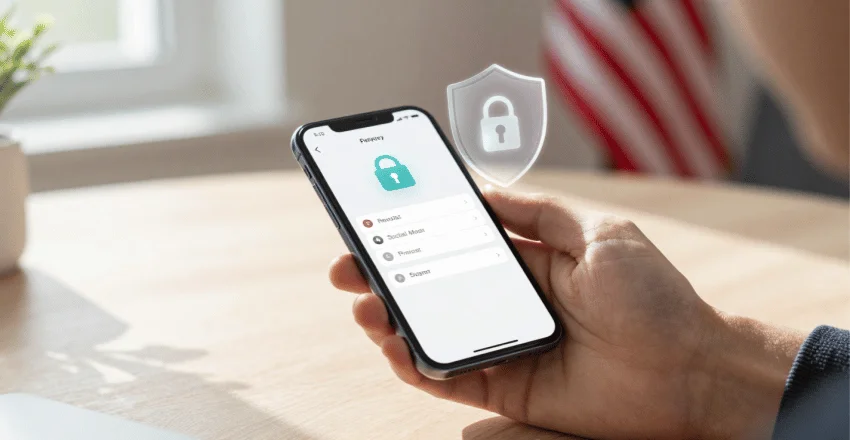
This is where most guides quietly stop being useful. Facebook’s own documentation states the feature “isn’t available everywhere at the moment” and that you can only lock your profile in certain countries. It launched in India in 2020 and spread through South Asia, the Middle East, and parts of Eastern Europe. It never became standard for accounts in the United States, Canada, or the UK.
Before you decide you are outside the rollout, rule out the ordinary causes.
- An outdated app. Update, force-close, and reopen.
- Professional or creator mode, which disables the lock.
- A secondary profile rather than your main account.
- A cached web session. Sign out of the browser and back in.
Work through those in order and stop at the first fix, the same discipline that keeps a Windows crash hunt short. Our walkthrough for the System Service Exception blue screen uses that method on a much nastier problem.
The manual lock: eight settings that copy it
Here is the part page one leaves out. Every effect of the lock has a matching switch in your privacy settings, and those switches work in every country. Set them once, and a stranger sees roughly what they would see on a locked account.
- Run Privacy Checkup from the settings. It walks you through the main audiences in a few screens.
- Set the audience for future posts to Friends.
- Use Limit Past Posts to convert every old public post in one action.
- Set your story audience to Friends under Settings, then Stories.
- Turn on profile review and tag review so nothing lands on your page unapproved.
- Turn on profile picture guard, which blocks downloads and stops strangers from enlarging your photo.
- Hide your birthday, hometown, workplace, email address, and phone number under Edit Profile.
- Restrict who can send friend requests and stop Facebook from suggesting you from a phone number or email address.
Two of those matter more than the rest. Limit Past Posts does the heavy lifting, because a decade of public photos is what a stranger actually scrolls. Profile picture guard closes the loophole that gets used for fake accounts.
Lock, restrict, block, or picture guard
These four get confused constantly, and they solve different problems.
| Tool | Applies to | They can still | Best for |
| Lock profile | Everyone who is not a friend | Find you, message you, send a request | A general clean up of your public footprint |
| Restrict | One specific person you stay friends with | See anything you post publicly | A coworker or relative you cannot unfriend |
| Block | One specific person | Nothing. The connection is cut both ways | Harassment from a named account |
| Picture guard | Your profile photo only | See the thumbnail version | Stopping photo theft and cloned accounts |
How to check it actually worked
Do not trust the padlock alone. Open a private browser window, go to facebook.com, and search your own name while signed out. You will see your profile the way a stranger does, which is the only test that means anything.
If old photos still load in that window, your past posts never converted. Go back and run Limit Past Posts.
How to reverse the lock
Same menu, opposite word. Tap the three dots beside Edit profile, choose Unlock profile, and confirm. Posts that were public before the lock do not come back as public. They stay set to Friends, and you would need to change them one by one, which is useful to know before you flip the switch the first time.
What locking does not cover:

- Screenshots. A friend can still save and share anything you post.
- Messenger. Strangers can still send a message request.
- Marketplace listings. Sellers see a limited public profile regardless.
- Group posts. What you write in a public group stays public.
- Comments on Pages. Your name and photo sit under every one of them.
Your connection sits outside all of this too. Facebook settings say nothing about the network you browse on, and our home internet plans and speeds coverage is the better starting point for that side of it.
Your next step
Spend the next five minutes doing this: open your profile, look for the three-dot menu, and lock it if the option is there. If it isn’t, run Privacy Checkup and work down the eight settings instead. Then open a signed-out browser window and look at yourself the way a stranger does. That last check is the one that tells you whether any of it stuck.
FAQs
Almost always because the feature has not launched in your country. Update the app and leave professional mode first, then use the eight settings above instead.
Yes. Every past public post changes to Friends automatically, and it does not revert when you unlock it.
They can. Your name and thumbnail photo stay searchable, and anyone can still send you a friend request or a message.
They see the padlock and the words Profile locked under your name. Nothing else about their view changes.
Yes, where the feature exists at all. The menu sits in the same place, next to Edit profile.
No, not by the lock itself. That list keeps its own audience setting, so change it under Settings and Privacy.