
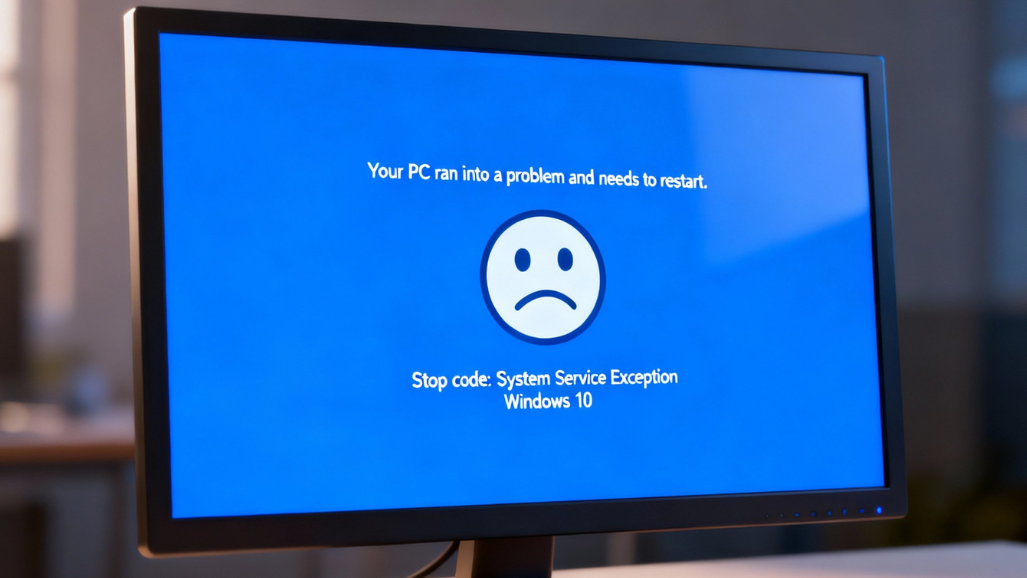
The System Service Exception Windows 10 error is a critical Blue Screen of Death (BSOD) issue that signals a serious disruption within the core services of the Windows operating system. System services are essential background processes responsible for managing hardware communication, memory allocation, security functions, and overall system stability.
When one of these services encounters an exception it cannot handle—often due to corrupted system files, incompatible or outdated drivers, faulty hardware components, or conflicts caused by third-party software—Windows immediately halts operations to prevent further damage, resulting in a system crash.
This error can occur unexpectedly during everyday tasks such as gaming, browsing the internet, installing updates, or running resource-intensive applications. In many cases, users may experience repeated crashes, automatic restarts, or data loss, making the System Service Exception Windows 10 error particularly frustrating.
| Aspect | Details |
| Error Name in Windows | System Service Exception Windows 10 |
| Common Error Codes | 0x0000003B, 0x0000007E, 0x0000009F, 0x0000001E |
| Error Type | Blue Screen of Death (BSOD) |
| Primary Causes | Corrupted system files, driver issues, hardware faults, third-party software conflicts |
| Affected System | Windows 10 |
| Common Triggers | Incomplete updates, malware, outdated drivers, incompatible software |
| Key Symptoms | Sudden system crash, blue screen, automatic restart |
| Initial Troubleshooting | Note the error code, and boot into Safe Mode. |
| Software Fixes | Update/rollback drivers, run SFC & DISM, uninstall problematic software. |
| Hardware Checks | RAM test, hard drive scan |
| Advanced Solutions | System Restore, clean Windows installation |
| Prevention Tips | Regular updates, driver maintenance, malware protection |
Understanding the System Service Exception Windows 10 Error
What is System Service Exception?
The “System Service Exception Windows 10 error typically appears as a blue screen and is represented by specific error codes, such as SYSTEM_SERVICE_EXCEPTION or 0x0000003B. This error indicates that an exception has occurred in a system service—core Windows functions responsible for critical processes. When the operating system encounters a scenario it cannot handle, usually due to issues with hardware drivers, third-party software, or corrupted system files, it triggers this error.
Common Error Codes and Messages
The System Service Exception error can display various error codes that help diagnose the underlying issue. Some common codes include:
- 0x0000003B: Indicates that a system service has raised an exception that the error handler did not catch.
- 0x0000007E: Points to problems with specific drivers or hardware components.
- 0x0000009F: Usually indicates that a driver attempted to access an invalid memory address.
- 0x0000001E: Often relates to issues with incompatible hardware or drivers.
Understanding these codes is crucial for effective troubleshooting.
How System Files Trigger System Service Exception Errors?
Corrupted System Files
One of the primary causes of the System Service Exception error is corrupted system files. These files are integral to the operating system’s functioning, and if they become compromised, it can lead to instability and crashes. Corruption can occur due to various reasons, including incomplete updates, malware infections, or sudden power outages during critical operations.
Incomplete Windows updates can leave files in an unusable state, while malware can modify or corrupt essential system files. Additionally, power failures during system updates or file writes can corrupt files, exacerbating the problem.
Driver Issues
Drivers, which serve as the bridge between the operating system and hardware components, can also trigger this error. Incompatible or outdated drivers often lead to exceptions. Common scenarios include outdated drivers, which may not support new features in updated software, and incompatible drivers following a Windows upgrade. Furthermore, faulty drivers can exhibit bugs that clash with core Windows processes.
Third-Party Software Conflicts
Certain third-party applications, especially those interacting with system components, can lead to System Service Exception errors. Antivirus software and system utilities designed to optimize performance can modify system files or processes, inadvertently causing conflicts. These conflicts can destabilize the system and lead to the BSOD.
Troubleshooting the System Service Exception Error
Step 1: Note the Error Code
When encountering a System Service Exception error, the first step is to note any error codes or messages displayed on the BSOD. This information is critical for diagnosing the underlying issue.
Step 2: Boot into Safe Mode
Booting into Safe Mode can help isolate the problem. Safe Mode starts Windows with a minimal set of drivers and services, which can determine if the error is caused by third-party software. To boot into Safe Mode, restart your computer and press the F8 key (or shift + F8) during startup. From the options presented, select “Safe Mode.”
Step 3: Update or Roll Back Drivers
Updating drivers can resolve compatibility issues. To do so, right-click the Start button and select “Device Manager.” Expand device categories and look for any devices with a yellow triangle, indicating issues. Right-click the device and select “Update Driver.”
If the error started after a driver update, consider rolling back to a previous version. In Device Manager, find the problematic device, right-click, select “Properties,” and navigate to the “Driver” tab to choose “Roll Back Driver.”
Step 4: Run the System File Checker (SFC)
The System File Checker (SFC) scans for and restores corrupted system files. To run SFC, open Command Prompt as an Administrator and type sfc /scannow, then press Enter. Wait for the scan to finish and follow any on-screen instructions.
Step 5: Perform a DISM Scan
The Deployment Imaging Service and Management Tool (DISM) can repair system images. Open Command Prompt as Administrator and execute the commands one by one. Wait for each command to complete before moving on.
Step 6: Uninstall Problematic Software
To rule out third-party software conflicts, consider uninstalling any recent applications that may interfere with system operations. Navigate to Control Panel > Programs > Programs and Features, locate any suspected software, and click “Uninstall.”
Step 7: Check for Windows Updates
Keeping Windows updated is crucial for addressing known issues. Navigate to Settings > Update & Security > Windows Update, click “Check for updates,” and install any available updates.
Step 8: System Restore
If the System Service Exception error persists, performing a System Restore can revert your system settings to a previous state, potentially resolving the issue. Search for “Create a restore point” in the Start menu. In the System Properties window, select “System Restore” and follow the prompts to choose a restore point prior to the error’s occurrence.
Step 9: Test Hardware Components
Defective hardware can also lead to System Service Exception errors. Testing your RAM and hard drives can help identify the problem. Use the Windows Memory Diagnostic tool to check for RAM issues by searching for it in the Start menu. For hard drive checks, open Command Prompt as Administrator and run chkdsk /f.
Step 10: Reinstall Windows
If none of the previous solutions resolve the issue, a clean installation of Windows may be required. Ensure that all important data is backed up, as this process will erase files from your system drive. Use the Windows Media Creation Tool to create a bootable USB drive, boot from it, and select “Install Now.” Follow the installation prompts, opting for “Custom Installation” to erase the previous operating system.
Conclusion
The “System Service Exception” error in Windows 10 can be a frustrating experience, often stemming from corrupted system files, driver conflicts, or third-party software interference. Understanding the underlying causes and systematically troubleshooting the error can help restore stability to the operating system.
By following the steps outlined in this article—from updating drivers and running system scans to utilizing System Restores or reinstalling Windows—users can effectively mitigate this issue. Proactive system maintenance, including timely updates and performance monitoring, can further reduce the likelihood of encountering such errors in the future.
Want to know about Samsung 990 EVO Plus SSD: Complete Guide to Speed, Reliability, Endurance, Thermal Performance, and Gaming Benchmarks Check out our Hardware category.
FAQs
Memory freeing up prematurely is considered one of the primary reasons behind the system service exception blue screen error.
One of the Blue Screen of Death errors that Windows users still experience today is the System Service Exception in Windows 10. Even though they are rare, these mistakes are dangerous and can cause your system to crash right away. Data loss and frequently corrupted files may result from this.
The value of the SYSTEM_SERVICE_EXCEPTION bug check is 0x0000003B. This shows that an exception occurred during the execution of a routine that switches between privileged and non-privileged code.
Troubleshooting to determine the underlying cause is often necessary to fix a BSOD on your Windows device. You can take the following actions: Determine the error message: Take note of the precise error code or message that appears on the blue screen. Boot in Safe Mode: This lets you launch Windows with the fewest possible drivers and services.