

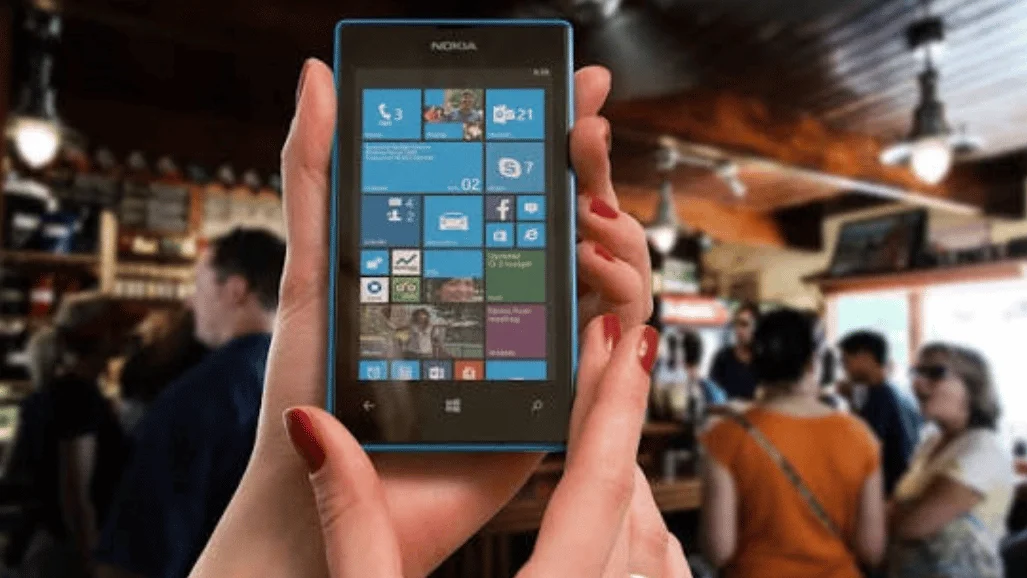
If you are trying to find downloads on this phone, start with the built-in file manager. Android phones usually use Files, Files by Google, or My Files. iPhones usually keep downloaded documents in the Files app.
To find downloads on this phone, open the device’s file app and look for the Downloads folder or category. On Android, also check your browser’s download list. On iPhone, check Files, iCloud Drive, On My iPhone, or Safari’s recent download button.
| Device or source | Start here. | Common location | Best fallback |
|---|---|---|---|
| Most Android phones | Files or Files by Google | Downloads or Internal storage > Download | Search by filename or file type. |
| Samsung Galaxy | My Files | Categories > Downloads | Recent files or Internal storage |
| Chrome on Android | Chrome menu | Downloads | Files app |
| iPhone | Files | Browse > iCloud Drive > Downloads | On My iPhone |
| Safari on iPhone | Safari | Recent download button | Files app and Safari settings |
| App-only media | Original app | Offline, Saved, or Library area | Check the app’s storage settings. |
TL;DR
Start with the file manager, because it shows ordinary documents, PDFs, ZIP files, and other saved items. Then check the browser if the file came from the web. If neither works, search the original app, cloud storage, Photos, or another configured save location.
How to Find Downloads on This Phone in 5 Steps
The fastest method is to follow the file from its source to its likely storage location. Your phone model changes some menu names, but the basic process stays similar. Use these steps before installing another file-management app.
- Open the phone’s built-in file manager, such as Files, Files by Google, or Samsung My Files.
- Open the Download category and sort by newest items if that option appears.
- Open Chrome, Safari, or the browser you used, then check its recent download list.
- Search for part of the filename, file extension, or file type if the item is not visible.
- Return to the original app and check its Saved, Offline, Library, Photos, or app-specific storage area.
Google says Android files are usually available through the device’s Files app. Manufacturers can use a differently named file manager, so the icon may vary. Google also lets you sort files by name, date, or size.
Find Downloaded Files on Android

On most Android phones, open Files or the manufacturer’s file manager. Choose the Download or Downloads category, then look for the newest file. PDFs, documents, ZIP archives, images, and other web files commonly appear there.
If the category looks empty, switch to internal storage and open the Download folder. You can also use the search field to enter a filename or extension. Searching “PDF” or “ZIP” can help when you do not remember the exact name.
Google Chrome gives you another path when a web file seems missing. Open Chrome, tap the menu, and choose Downloads to review recent items. Google Chrome help confirms that this menu can open, share, rename, or delete downloaded files.
Samsung Galaxy: Use My Files First
Samsung Galaxy phones use the My Files app for local file management. Open My Files, then choose Downloads under Categories to see recently saved items. Samsung also lets you browse images, videos, audio, documents, installation files, internal storage, and supported external storage.
If a file is still missing, use the search tool inside My Files. You can also check Recent files before browsing individual folders. Samsung’s U.S. support guidance documents these categories and file-management options.
Find Downloaded Files on iPhone.
On an iPhone, open Files and tap Browse. Check the Downloads folder inside iCloud Drive first. Apple says downloaded documents, images, and other files can be viewed from this area.
Safari can also save files to On My iPhone or another selected folder. If iCloud Drive looks empty, open On My iPhone and check there. You can confirm the configured destination through Safari’s download settings.
A photo or video may appear in Photos instead of Files if you saved it to your photo library. A document may stay in Files when you choose Save to Files. This difference explains why two saved items from the same website can appear in different places.
Check Chrome or Safari when the File Came From the web.
A browser’s history can tell you whether a file finished downloading. Chrome on Android has a dedicated list in its menu. Safari shows a download button near the search field after recent file activity.
Use the browser view when you remember the website but not the filename. Then open the item or reveal its stored location when that option is available. This method also helps identify failed or unfinished transfers before you search every folder.
Why a Downloaded File May Seem to Disappear
Some saved content never enters the normal file folder. Streaming apps, ebook services, games, and social apps may keep offline content inside their own libraries. That content can remain hidden from the general file manager because the app controls access.
Gaming content is a clear example of this difference. TechIrya’s Best Indie Games guide explains how game add-ons are managed through the title or digital store. You may own the content without seeing a normal standalone file in your phone’s folder.
Cloud apps can create another source of confusion. A document may be visible in cloud storage without being stored locally. Look for a cloud icon, offline option, or explicit Save to device command.
Use the File Type to Narrow the Search
The filename is useful, but the file type can be faster. Look for PDF, DOCX, ZIP, JPG, PNG, MP4, or another extension that matches the item. Most file managers also group documents, images, videos, and audio into categories.
PDF planners and forms often stay in the Files app until another app opens them. TechIrya’s digital planners guide discusses PDF-based planning across phones, tablets, and other devices. That distinction helps when a planner exists as a document instead of a normal app.
What to Do When the Folder Is Empty
First, confirm the transfer finished successfully. Open the browser or original app and check whether the item shows a completed status. A canceled or failed transfer may leave nothing usable in the expected folder.
Next, sort the folder by date and inspect the newest entries. The website may have saved the file under a different name than you expected. Search by extension when the original name is unclear.
Finally, check whether the app saved the item to cloud storage or its own private area. Offline videos and music often remain inside the service that downloaded them. Reopen that service before assuming the file was deleted.
Manage, Share, or Delete Saved Files
Once you find the file, you can usually open, rename, move, share, or delete it from the file manager. Android and Samsung both provide these controls inside their file apps. iCloud Files offers similar file-management actions.
Deleting old installers, duplicate documents, and unused media can free local storage. Be careful with anything you do not recognize, especially installation files. Keep important documents backed up before clearing a large folder.
Check Safety Before Opening an Unfamiliar File
Do not open an unexpected installer or attachment only because it appeared in your file list. Confirm the sender, website, and file type before opening it. Delete suspicious items if you cannot verify their source.
Untrusted files can carry malicious software or lead to unsafe installation prompts. TechIrya’s botnet safety guide explains how compromised devices can become part of attacker-controlled networks. Keeping your phone updated also reduces exposure to known security flaws.
Frequently Asked Questions
Where are downloads on this phone if the folder is empty?
Check the browser or app that created the file, because the transfer may not have finished. Then search Files, My Files, iCloud Drive, On My iPhone, Photos, or the app’s offline library. Sorting by date can also reveal a file saved under an unexpected name.
Where do Chrome files go on Android?
Chrome usually saves normal web files to the device’s default download location. You can review recent items from Chrome’s menu, then choose Downloads. The same files are commonly visible through Files or the phone maker’s file manager.
Where do Safari files go on an iPhone?
Safari commonly saves documents into a Downloads folder that appears in the Files app. The folder may be inside iCloud Drive, On My iPhone, or another configured location. Safari’s recent download button can also take you back to a newly saved file.
Why can I see a video in an app but not in Files?
Some apps store offline media inside their own protected storage. The item may be available for playback without becoming a normal MP4 file. Use the app’s export or Save to device option if it provides one.
Next Step
Open your phone’s file manager and sort the main folder by newest items first. If the file is absent, check the browser or app that created it. That two-part check solves most missing-file searches without installing extra software.