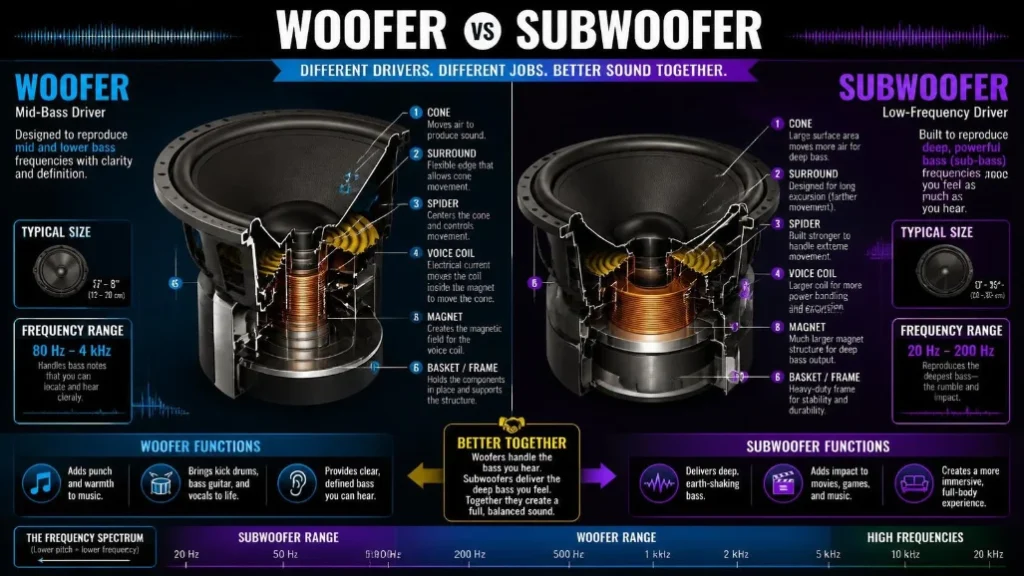


A good USB C docking station can turn a thin laptop into a capable desktop workspace. One cable can connect displays, Ethernet, storage, accessories, and laptop power. The difficult part is choosing a dock that your computer can fully support.
USB-C describes a connector shape, not one fixed set of capabilities. Some ports support video, charging, USB4, or Thunderbolt, while others support fewer functions. Your laptop’s specifications matter as much as the dock itself.
Quick answer: For most buyers, start with the UGREEN Revodok Max 13-in-1 if your laptop supports Thunderbolt or USB4. Choose Plugable’s UD-6950PDZ when multi-monitor flexibility matters more, especially with Macs. Premium users should consider CalDigit’s TS4, while Thunderbolt 5 systems can use Anker’s newer Prime TB5 dock.
Best Docking Stations at a Glance
| Pick | Best for | Host technology | Laptop charging | Display strength | U.S. price checked* |
|---|---|---|---|---|---|
| UGREEN Revodok Max 13-in-1 | Most people | Thunderbolt 4, USB4, compatible USB-C | Up to 90W | Dual 4K60 or single 8K | $239.99 |
| Plugable UD-6950PDZ | Three-monitor setups | USB-C, USB4, Thunderbolt | Up to 100W | Up to three 4K displays | $229.99 |
| CalDigit TS4 | Premium workstations | Thunderbolt 4 | Up to 98W | High-resolution dual-display support | $379.99 |
| Anker Prime TB5 | Thunderbolt 5 laptops | Thunderbolt 5 | Up to 140W | Up to dual 8K on supported Windows systems | $399.99 |
| StarTech 132N-TB4USB4DOCK | Business and IT fleets | Thunderbolt 4, USB4, USB-C | Up to 98W | Up to four 4K60 displays on supported Windows laptops | $293.99 |
*Prices were checked in October 2026 and can change.
Key Takeaways
- Check your laptop’s USB-C capabilities before choosing any dock.
- Thunderbolt and USB4 provide more bandwidth than basic USB-C connections.
- DisplayLink can add monitors beyond some computers’ native display limits.
- Mac and Windows display support can differ on the same hardware.
- Match charging wattage to your laptop instead of choosing the biggest number.
- Pay for Thunderbolt 5 only when your computer can use its extra bandwidth.
The 5 Best USB C Docking Station Options for U.S. Buyers
1. UGREEN Revodok Max 13-in-1: Best for Most People
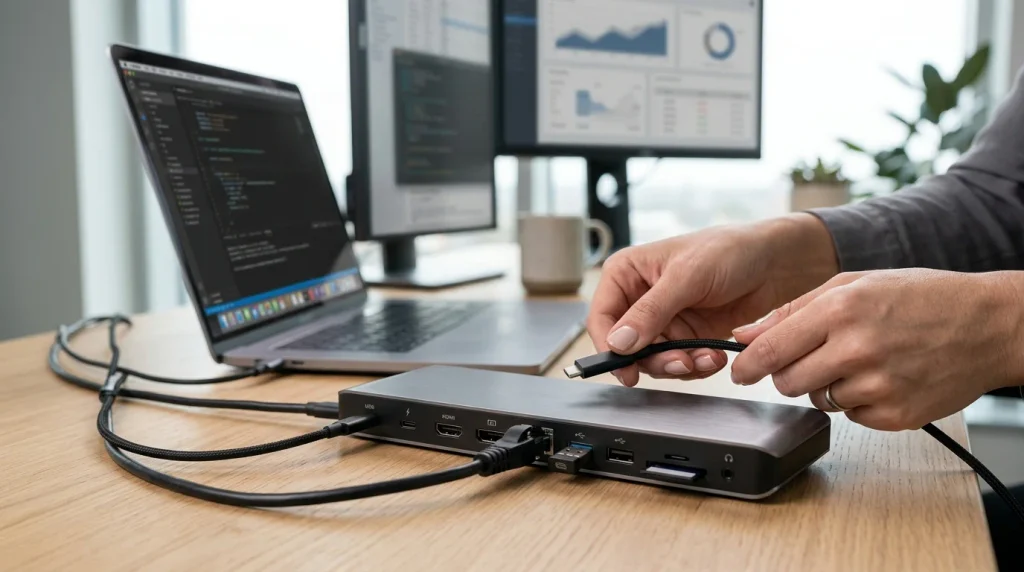
UGREEN’s Revodok Max gives mainstream professional users a balanced set of features. It combines Thunderbolt 4 bandwidth, 2.5GbE networking, card readers, and several USB ports. The current U.S. price was $239.99 when checked.
UGREEN lists support for dual 4K60 displays or one higher-resolution display on compatible systems. The dock can provide up to 90W of laptop charging. Its included power supply also removes another purchase from your setup.
This model makes the most sense for a recent Windows laptop or compatible Mac. Owners of basic USB-C laptops should confirm their computer’s display capabilities first. Thunderbolt features cannot appear when the host does not support them.
Pros
- 13 ports for a permanent desk setup
- Thunderbolt 4 with 40Gbps maximum bandwidth
- 2.5GbE wired networking
- SD and microSD card support
- Up to 90W laptop charging
Cons
- Costs more than simple USB-C hubs
- Full capabilities require a compatible host
- Display behavior still depends on the computer
2. Plugable UD-6950PDZ: Best for Three Monitors
Plugable’s UD-6950PDZ stands out when display count matters more than native graphics simplicity. It combines DisplayPort Alt Mode with DisplayLink graphics technology. That design can support up to three external 4K displays on compatible systems.
The current version provides up to 100W laptop charging and six USB ports. Plugable listed it at $229.99 in the United States when checked. It also includes HDMI and DisplayPort choices for each display position.
DisplayLink is especially useful for systems with restrictive native external-display support. It requires software installation, including DisplayLink Manager on macOS. Buyers seeking a completely driver-free configuration may prefer a Thunderbolt model.
Pros
- Supports up to three 4K monitors
- HDMI and DisplayPort flexibility
- Up to 100W laptop charging
- Broad Windows and macOS usefulness
- Six downstream USB ports
Cons
- DisplayLink software is required for some outputs
- Not ideal for latency-sensitive graphics work
- Compatibility still depends on host video support
3. CalDigit TS4: Best Premium Thunderbolt 4 Choice
CalDigit’s TS4 remains attractive for demanding Thunderbolt 4 workstations. It has 18 ports and delivers up to 98W to a compatible laptop. The official U.S. price was $379.99 when checked.
Its port selection suits creators who connect storage, networking, displays, audio, and card media. CalDigit specifies up to dual 6K60 on certain Apple Pro and Max systems. Compatible Windows computers can support dual 4K60 configurations.
The biggest drawback is price. Buyers with only a keyboard, monitor, and Ethernet cable will not use its full capability. It becomes easier to justify when many peripherals stay permanently attached.
Pros
- 18 ports
- Up to 98W laptop charging
- 2.5GbE networking
- Strong high-resolution display support
- Extensive USB and Thunderbolt connectivity
Cons
- Expensive for ordinary office use
- Base Apple chips can have display limits
- Overkill for simple single-monitor desks
4. Anker Prime TB5: Best for Thunderbolt 5 Laptops
Anker’s Prime TB5 targets newer computers with Thunderbolt 5 support. It offers 14 connections and up to 140W host charging. Anker listed the dock at $399.99 in the U.S. when checked.
Thunderbolt 5 provides much more bandwidth than standard USB-C connections. Anker specifies up to 120Gbps under supported conditions using Bandwidth Boost. Compatible Thunderbolt 5 Windows laptops can also drive very demanding display configurations.
Most users should not buy this model for future-proofing alone. A Thunderbolt 4 computer cannot suddenly gain Thunderbolt 5 performance through a newer dock. Spend the premium when your existing laptop can use those capabilities.
Pros
- Thunderbolt 5 connectivity
- Up to 140W host charging
- 2.5GbE networking
- Multiple high-speed USB-C ports
- Strong display headroom
Cons
- $399.99 price
- Limited benefit on older laptops
- More capability than many office users need
5. StarTech 132N-TB4USB4DOCK: Best for Business Deployments
StarTech’s model focuses on broad professional deployment rather than flashy extras. It supports Thunderbolt 4, USB4, and compatible USB-C host connections. The manufacturer listed it at $293.99 when checked.
Supported Windows laptops can drive as many as four 4K60 monitors under specific hardware conditions. StarTech also specifies up to 98W Power Delivery for laptops. Mac display limits depend heavily on the Apple processor involved.
That makes this model useful for offices with standardized hardware. IT teams should test their exact laptop and monitor combination before a large deployment. A port count alone never guarantees a particular display arrangement.
Pros
- Up to four displays on supported Windows hardware
- 98W Power Delivery
- Thunderbolt 4 and USB4 support
- Business-focused management features
- Strong cross-platform documentation
Cons
- Display limits vary by computer
- Expensive for basic home use
- Base Apple processors can support fewer displays
USB-C, USB4, Thunderbolt, and DisplayLink Explained
USB-C is the physical connector you see on the laptop. The connector may carry ordinary USB data, video, charging, USB4, or Thunderbolt. Two identical-looking ports can therefore perform quite differently.
Thunderbolt 4 offers a more tightly defined 40Gbps platform on compatible computers. USB4 can also provide high bandwidth, although implementations can vary. Thunderbolt 5 increases available bandwidth for newer workstations and demanding display setups.
DisplayLink takes a different approach by sending compressed display data through USB. Software then drives additional monitors using compatible DisplayLink hardware. This approach can bypass some native display restrictions, but it introduces a software layer.
How Many Monitors Can Your Dock Support?
Do not count HDMI and DisplayPort sockets to determine monitor support. The laptop’s graphics hardware and connection technology set the real limit. Operating-system restrictions can also change the answer.
Windows systems commonly support MST-based multi-monitor arrangements when the hardware permits them. macOS does not handle every MST arrangement the same way. DisplayLink can provide another option when native outputs are limited.
A screen showing no image does not automatically mean the dock is defective. Test the monitor directly when possible, then check the cable and selected input. Techirya’s guide to a no DP signal from your device covers useful checks for missing display signals.
How Much Power Delivery Do You Need?
Match the dock’s charging output to your laptop’s normal power requirements. A 65W ultrabook rarely needs a 140W dock for charging alone. Larger mobile workstations may need considerably more power.
Power Delivery ratings also describe a maximum, not a guaranteed charging rate. Your computer decides how much compatible power it accepts. Some gaming laptops still require their original power adapter during heavy workloads.
Consider other devices connected to your workstation as well. USB accessories can draw power from the dock’s total available supply. A powered desktop dock is usually better than a small travel hub for permanent setups.
Which Ports Should You Prioritize?
Start with the equipment already sitting on your desk. Count displays, USB devices, Ethernet, headphones, storage, and memory cards. Then leave one or two spare connections for future accessories.
A photographer may value fast SD storage more than extra USB-A sockets. An office user may care more about Ethernet and two dependable monitor outputs. A developer with external SSDs may prioritize Thunderbolt bandwidth.
Audio accessories can also affect your choice. Techirya’s wired USB-C headphones guide explains digital USB audio compatibility. Its headset with mic guide can help when work calls are part of your desk setup.
Docking Station vs USB-C Hub
A hub usually focuses on portable expansion from one computer port. It may add HDMI, USB-A, Ethernet, and card readers without its own large power supply. This design works well for travel and occasional desk use.
A full dock usually targets a permanent workspace. It often includes a dedicated power adapter, more ports, faster networking, and stronger display support. Desktop models also tend to provide higher laptop charging power.
Choose the smaller device when portability matters most. Choose the dock when one-cable desk convenience matters more. Buying more hardware than your setup needs adds cost without improving daily work.
Do You Need 2.5Gb Ethernet?
Gigabit Ethernet remains sufficient for many homes and offices. A 2.5GbE port becomes useful with faster local storage or multi-gig internet service. Your router and cabling must also support that speed.
A faster dock cannot raise a slower network’s capacity. Check your router’s LAN ports before paying extra for higher Ethernet speeds. Compare your wired and wireless network options before paying for a faster port.
For large file transfers, faster Ethernet can matter more than internet speed. Network-attached storage is a common example. Creative teams can benefit when several computers move large files locally.
Our Recommendation
The UGREEN Revodok Max is the strongest starting point for most compatible modern laptops. Its port selection, 2.5GbE, 90W charging, and Thunderbolt 4 connection cover common professional needs. Its price also stays below many premium alternatives.
Choose Plugable instead when three external displays are your main requirement. Pick CalDigit when you need a large permanent collection of high-speed connections. Anker makes more sense for a laptop that already has Thunderbolt 5.
StarTech’s model fits managed business environments and demanding Windows display setups. None of these choices is universal because host support changes their capabilities. Check your exact laptop model before ordering.
Frequently Asked Questions
What does a USB C docking station do?
A USB C docking station expands one laptop connection into several useful desktop connections. It can add monitors, Ethernet, USB accessories, storage, audio, and charging. Available features depend on both the dock and computer.
Can any USB-C port work with a docking station?
No, USB-C ports do not all offer identical features. Some support data only, while others also support DisplayPort video or USB Power Delivery. USB4 and Thunderbolt ports usually offer broader docking capabilities.
Can a USB-C dock run two monitors?
Yes, many docks can run two monitors on compatible computers. The laptop must support the display method used by that particular dock. macOS, Windows, MST, Thunderbolt, and DisplayLink can produce different results.
Will a docking station charge my laptop?
Many powered docks can charge laptops through USB Power Delivery. Charging speed depends on the dock’s output and the computer’s accepted wattage. High-power gaming laptops may still need their original charger.
Is Thunderbolt better than USB-C for docking?
Thunderbolt is useful when you need predictable high bandwidth and demanding display support. Basic USB-C can still handle common office setups at a lower price. Your laptop should support Thunderbolt before you pay for it.
Is DisplayLink good for MacBooks?
DisplayLink can be useful when a Mac has limited native external-display support. It requires compatible software because the displays operate through USB graphics. Native Thunderbolt output remains preferable when it already meets your needs.
Final Buying Checklist
Before buying, confirm these points:
- Your laptop’s USB-C, USB4, or Thunderbolt specification
- Required number of external monitors
- Each monitor’s resolution and refresh rate
- Windows or macOS compatibility
- Required laptop charging wattage
- HDMI or DisplayPort requirements
- USB-A and USB-C device count
- Gigabit or 2.5GbE networking needs
- SD or microSD card requirements
- Whether DisplayLink software is acceptable
A dock should solve the limitations of your actual computer, not win a specifications contest. Start with your laptop, displays, and charging needs before comparing port counts. That approach avoids paying for features your system cannot use.